
How To: Attach documents to Contracts and Agreements
Contract Attachments
Contracts can include attachments that provide additional information. These attachments can be presented in two different ways at the time of signing.
Images: These will always appear visually on the right-hand side of the contract only.
PDFs and Word documents: These appear on the right-hand side, plus the additional option to attach them directly to the contract. This is particularly useful for contracts that require redlining, annotations, or detailed review.
In the image below, we added an image and a PDF attachment with the PDF attachment appended directly to the contract at the bottom.
Viewing Contract and Agreement Attachments
Contract and Agreement attachments are displayed in the "Attachments Area" on the contract signing page.
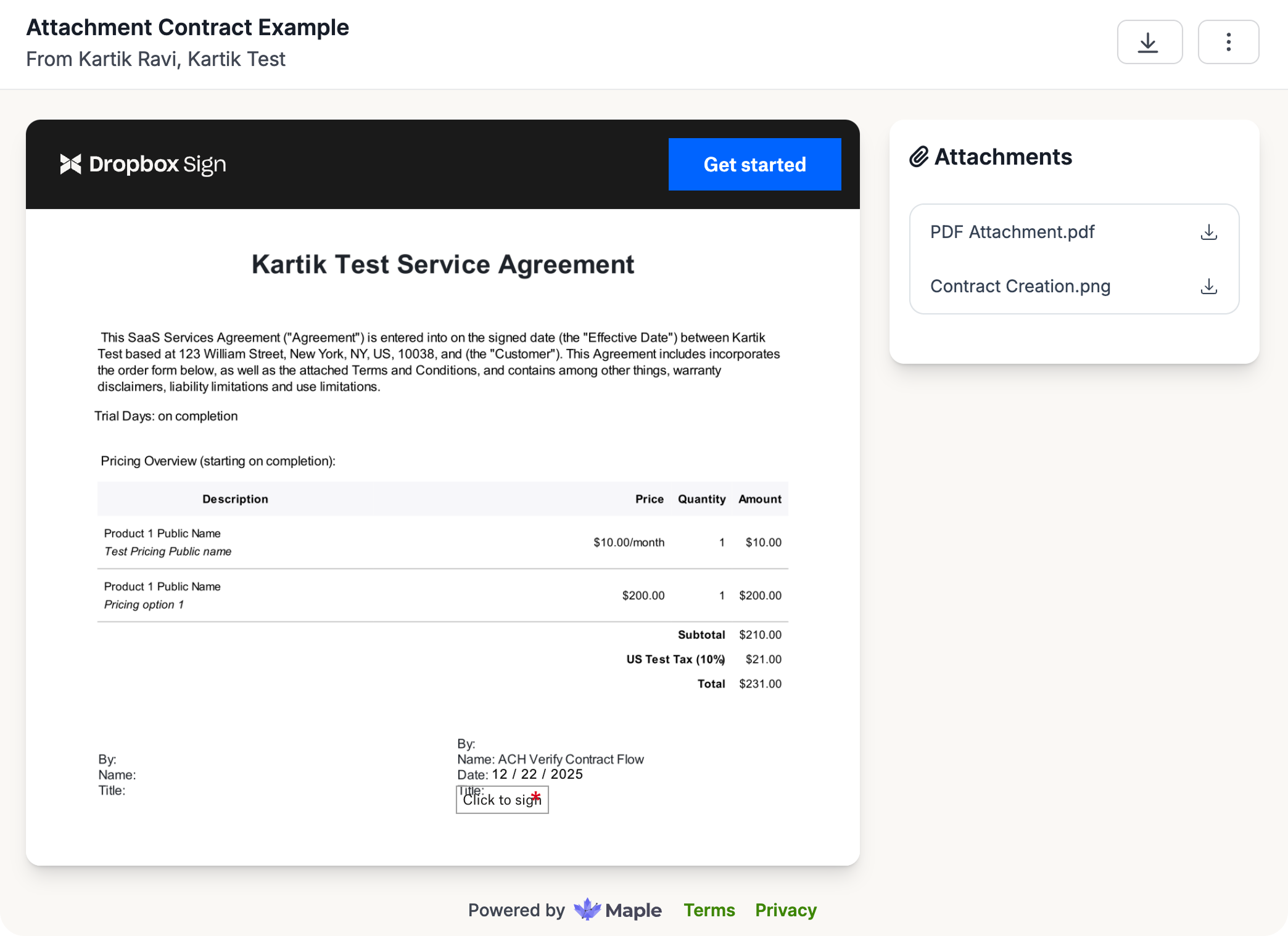
Aside from being displayed in the attachments area, PDF and Word attachments can also be merged with the main contract document to form one unified document. More on this in this section: Merging PDFs and Word Files with the Contract Document.
Attaching Documents to Contracts
To attach a document to a contract,
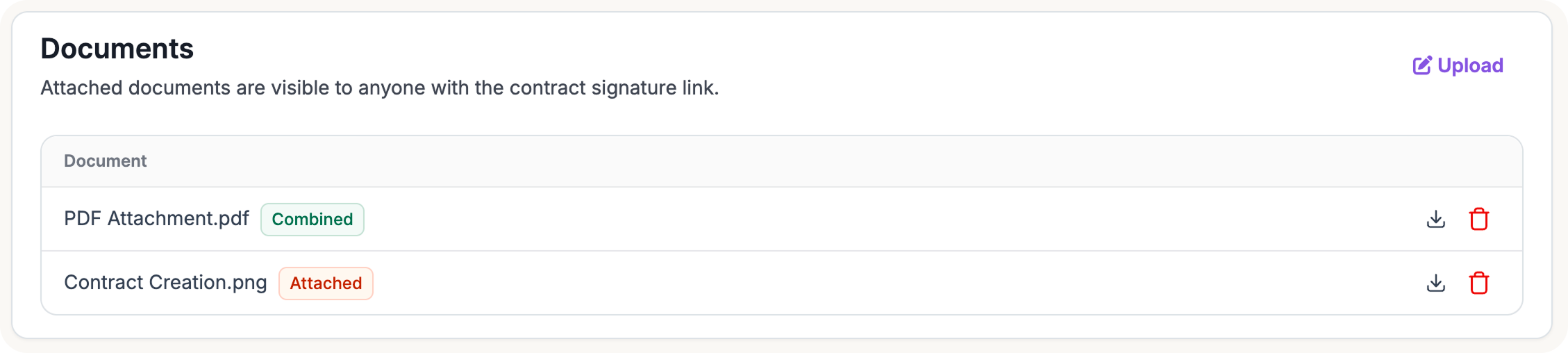
Go to Contracts > Sales Contracts
Select an existing contract or create a new contract
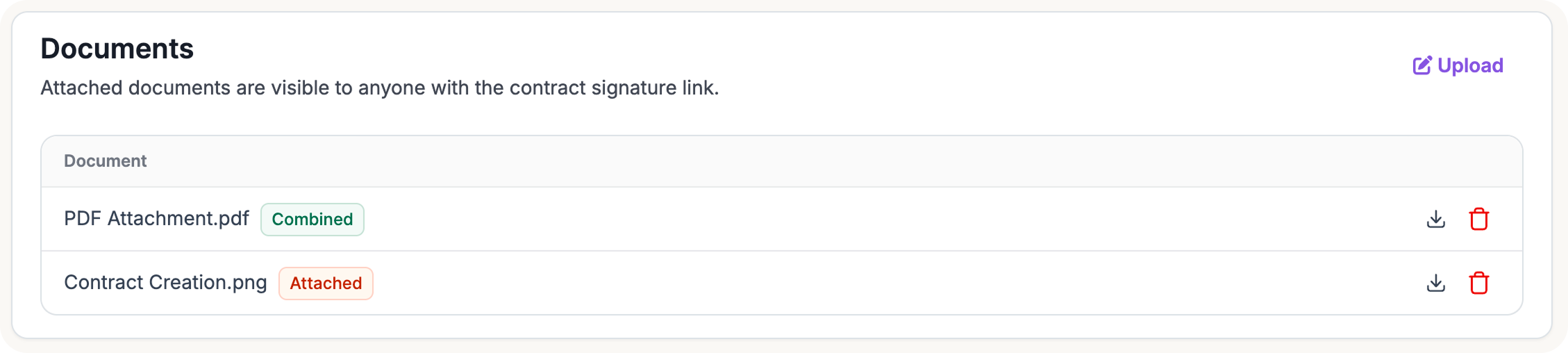
In the "Documents" card, click on the "Upload" button
In the "Upload Document" area, click on "Choose File" to select a file from your computer and click "Upload"
The attached file will be displayed in the "Documents" card
Default Attachments
Default attachments can be added to contract templates so that the attachment is present on any contract using that template.
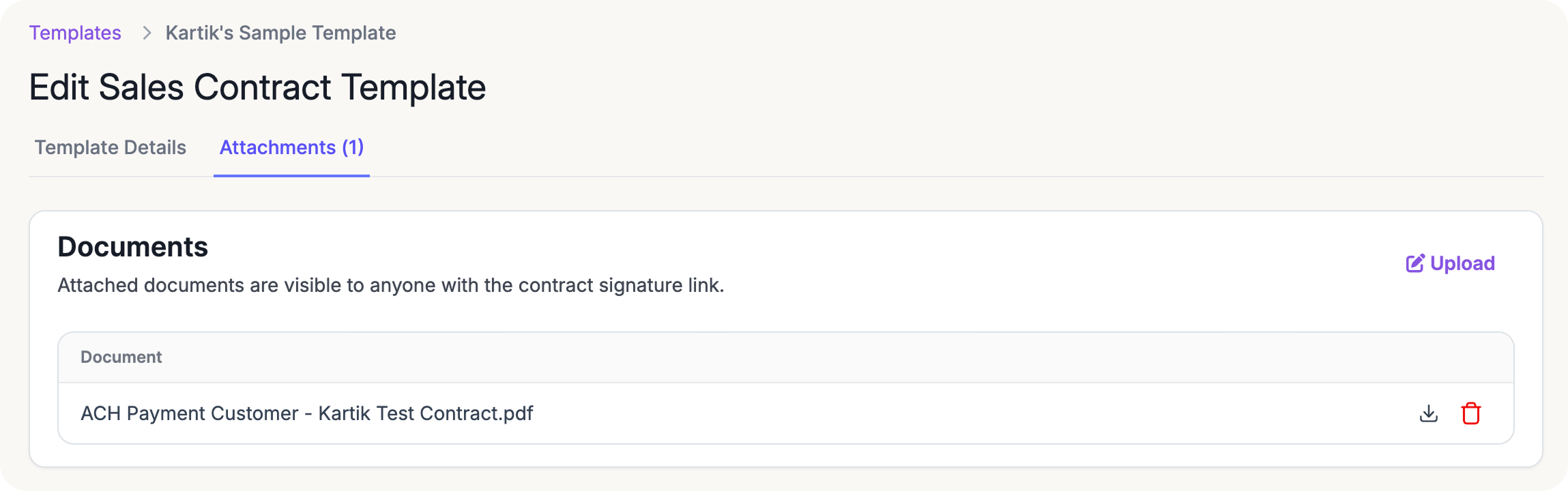
To configure default attachments,
Go to Settings > Contracts > Templates
Find the template you want to add attachments to and click the edit icon
In the template edit view, click on the Attachments tab
In the "Documents" card, click on the "Upload" button
In the "Upload Document" area, click on "Choose File" to select a file from your computer and click "Upload"
The attached file will be displayed in the "Documents" card
Note: This attachment will automatically be added to any NEW contract created using this template. Adding attachments to existing contract templates will NOT automatically add these attachments to existing contracts already using the template.
Merging PDFs and Word Files with the Contract Document
You have the ability to choose whether you want to keep PDF and Word attachments as separate files or automatically merge them with the main contract document into a single, unified contract document.
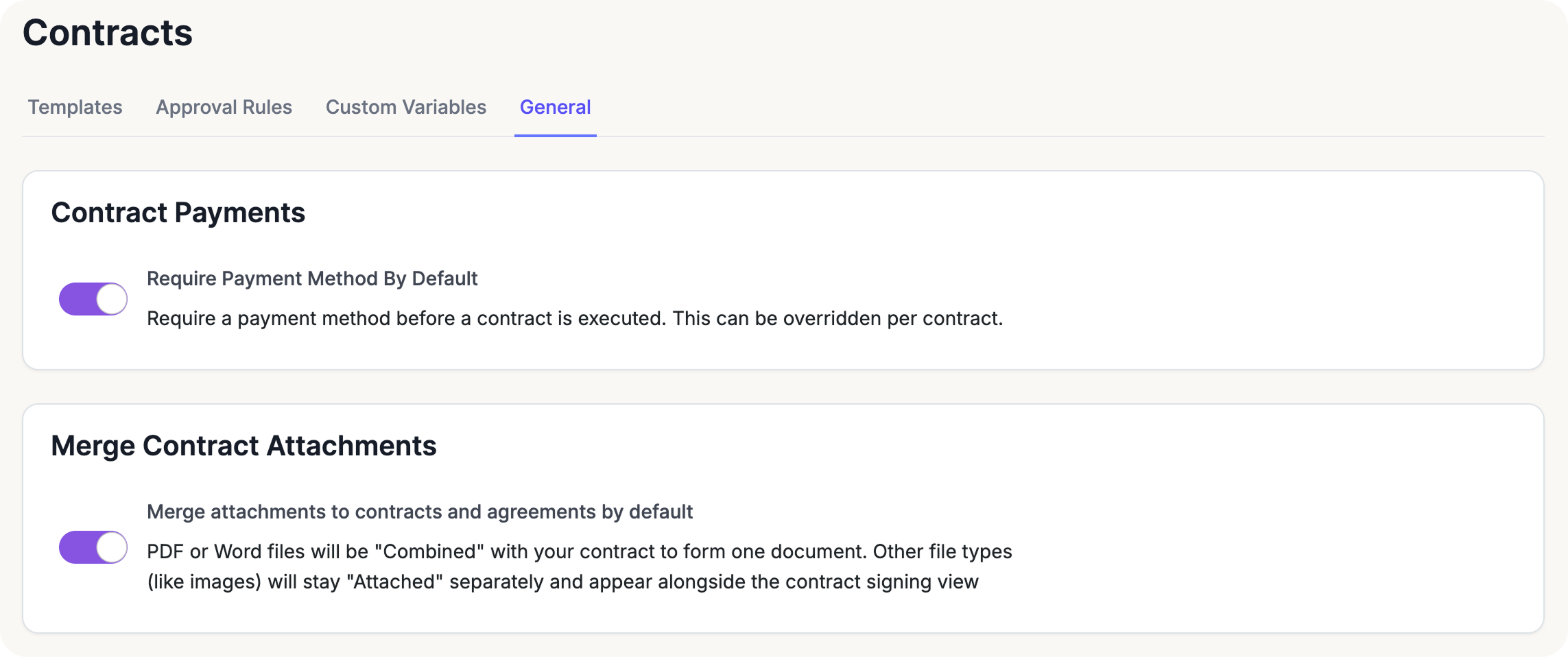
To enable or disable the automatic merging of attachments, follow these steps:
Navigate to Settings > Contracts > General tab
Locate the section titled Merge Contract Attachments
Toggle the setting: "Merge attachments to contracts and agreements by default"
Once enabled, Combined/Merged documents and Attached Documents will be identified accordingly in the "Attachments" card.
Note: If this setting is disabled, all attachments—regardless of file type—will only be accessible via the attachments sidebar and will not alter the primary contract document.