
How To: Configure Terms and Conditions in Maple
Maple allows you to configure and display specific Terms and Conditions links on your checkout pages associated with Payment Links, Contracts, and Checkout Sessions.
To enable this feature
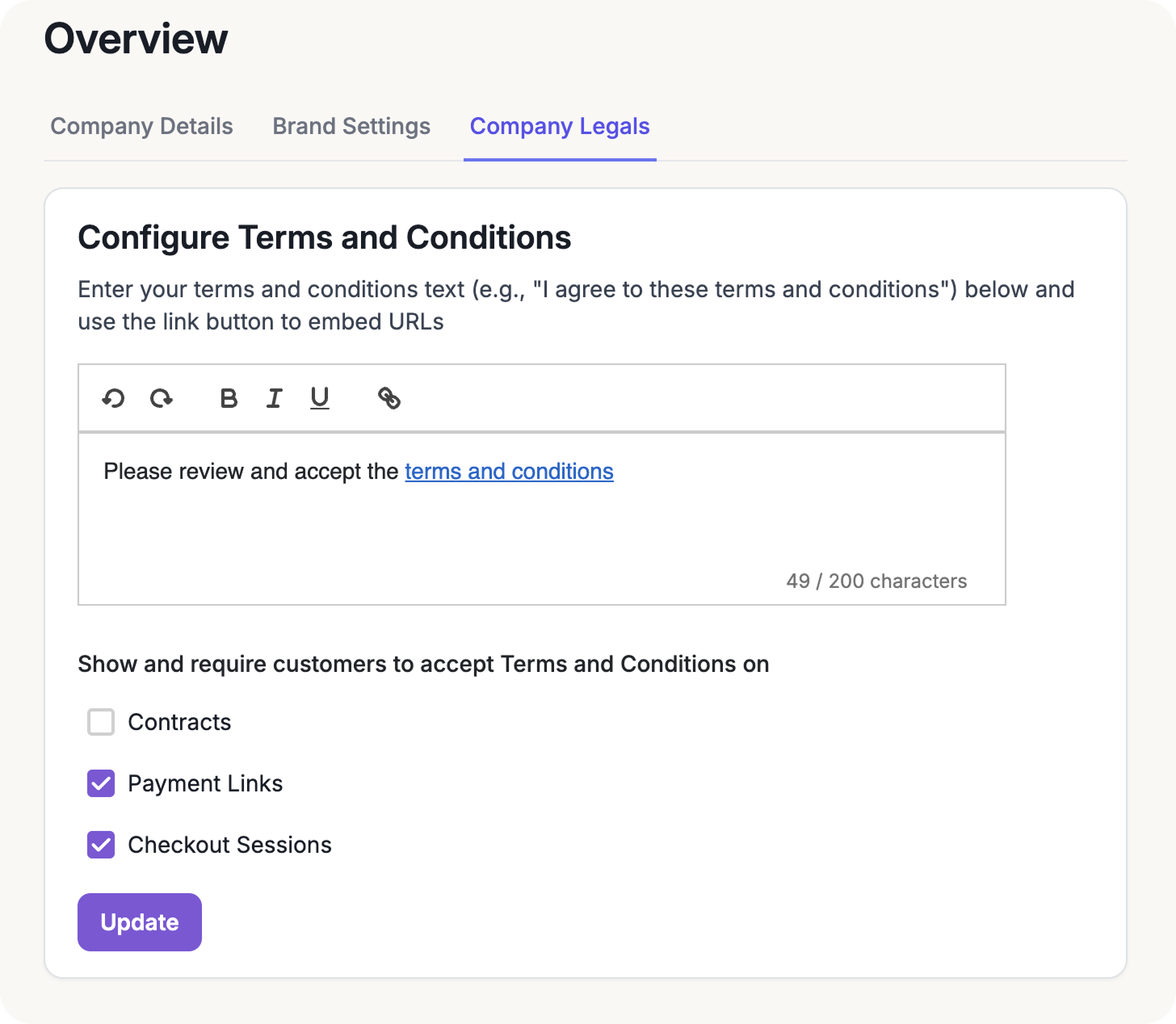
Go to Settings > Overview and click the Company Legals tab.
Here, you will find a field to configure your required Terms and Conditions text
Use the link icon within the text editor to embed the URL of your Terms and Conditions document into the text
Once the text and link are configured, you can select which of the three checkout page types should display this information:
Payment Links
Contracts
Checkout Sessions
Customer Experience
Display: Once enabled and updated, the Terms and Conditions link will be displayed at the bottom of the selected checkout pages
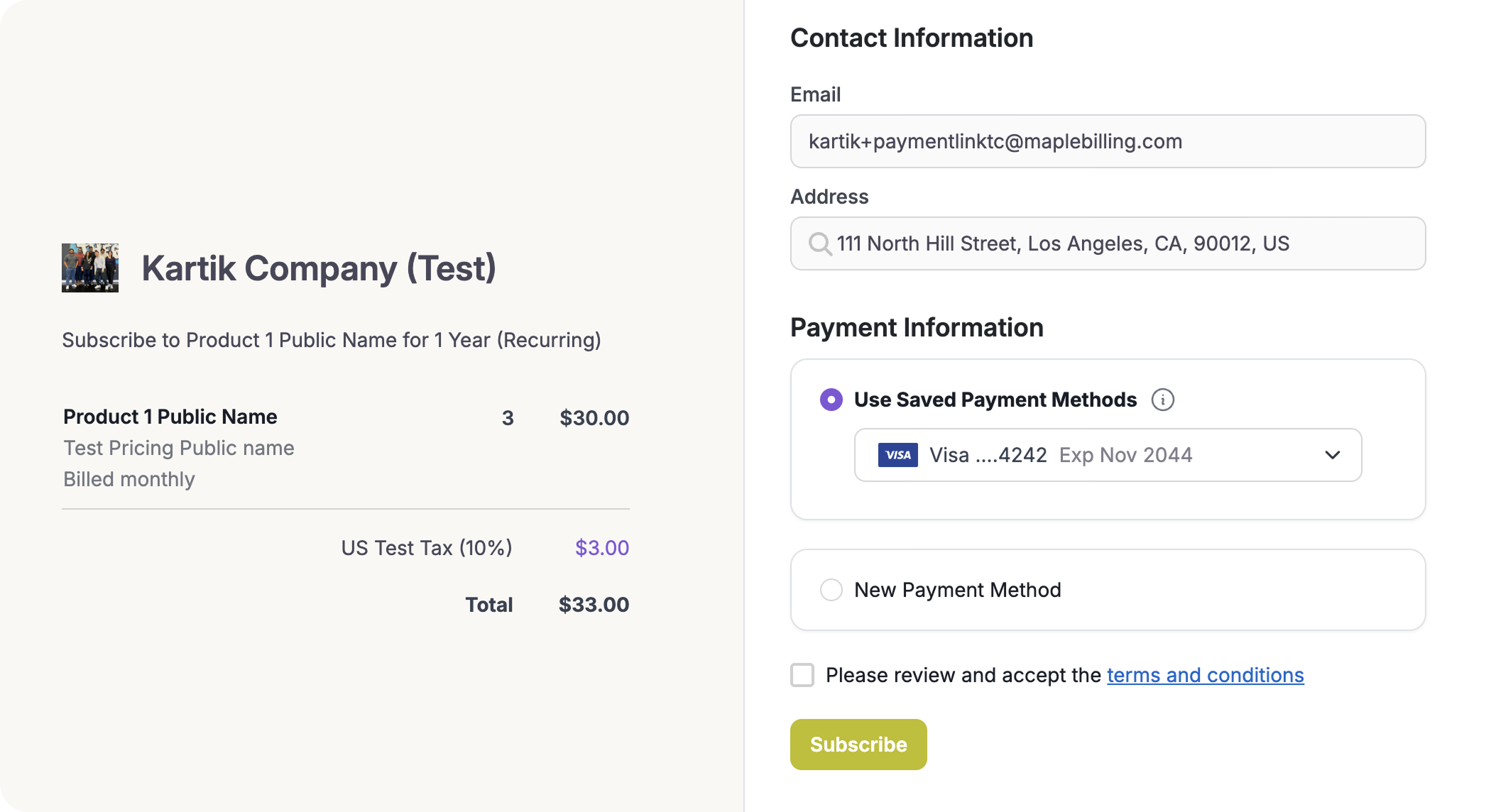
Acceptance: When the Terms and Conditions are enabled, the customer will be required to accept them before they can complete their purchase.
Disabling: If you disable one of the links in the configuration, that Terms and Conditions acceptance area will no longer be displayed on that specific type of checkout page.