
How To: Connect the Avalara Integration
Maple has a certified integration with Avalara and ensures that customer invoices include accurate sales taxes based on your tax status and jurisdictions.
Learn how to connect to AvaTax.
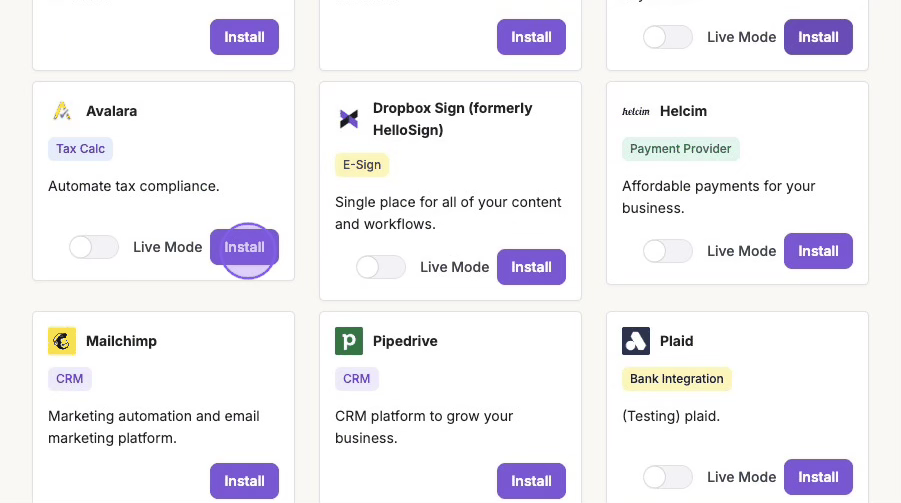
1. Integrations > "Install" (Avalara)
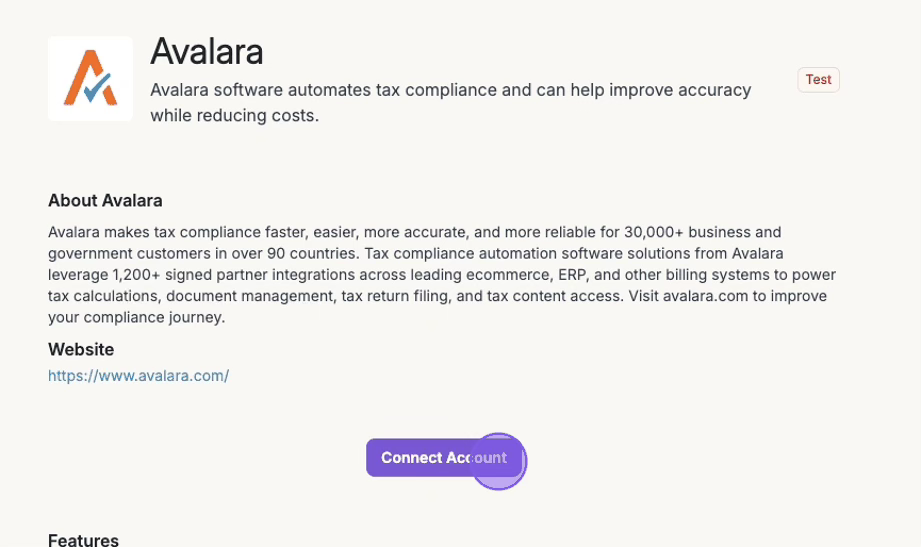
2. Click "Connect Account"
3. Enter your Avalara AvaTax Credentials
Account ID: Provided during your AvaTax account activation process
Software License Key: Available under Avalara Settings. For more instructions, please follow this article from Avalara's knowledge base.
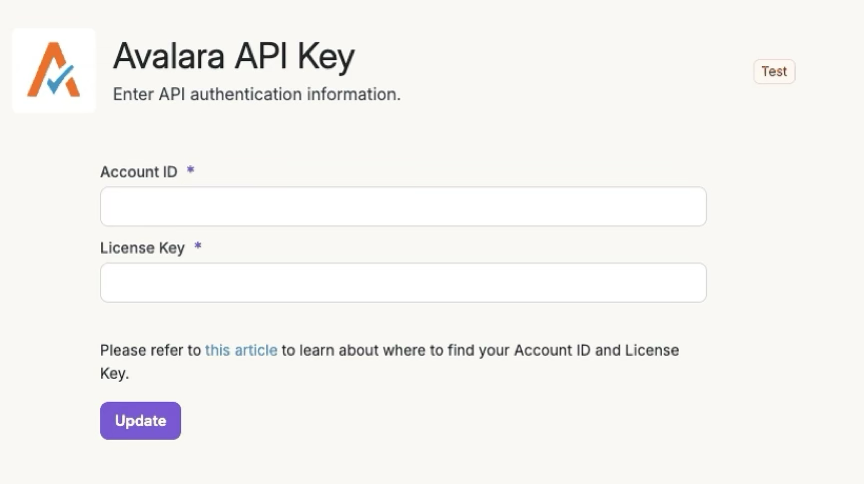
Hit "Update" to connect your Avalara account.
4. Map Tax Products
To provide the correct tax code when we submit transactions to Avalara, we allow mapping of Maple products to AvaTax products.
Note: You can change these mappings at a later time as well.
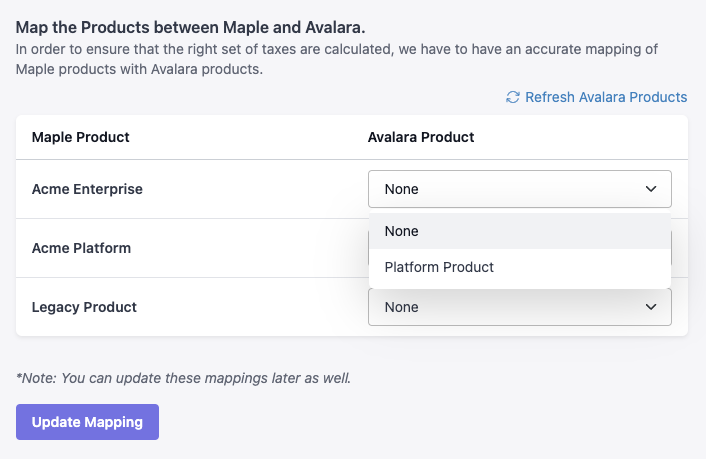
Be sure to save your progress by hitting "Update Mapping" at the bottom of your product list.
Manage Avalara AvaTax Settings
Once connected, you will be able to view and update any settings to ensure that all information is up to date. All the settings are available at Integrations > Avalara
Enable/Disable Tax Calculations: At any point, you can turn on/off tax calculation from Avalara for invoices.
Manage Tax Products Mapping: You can map any new products in Maple to appropriate tax products in Avalara or update any existing tax products mapping.
Update API authorization: If the license key changes in Avalara, for any reason, it will have to be updated in Maple as well. Please ensure this is done as soon as possible to avoid any disruptions in invoicing.