
How To: Connect Xero to Maple
Maple’s Xero integration simplifies the accounting process by automatically syncing invoices, payments, and related data from your Maple account to Xero.
1. Click Integrations > "Install" (Xero)
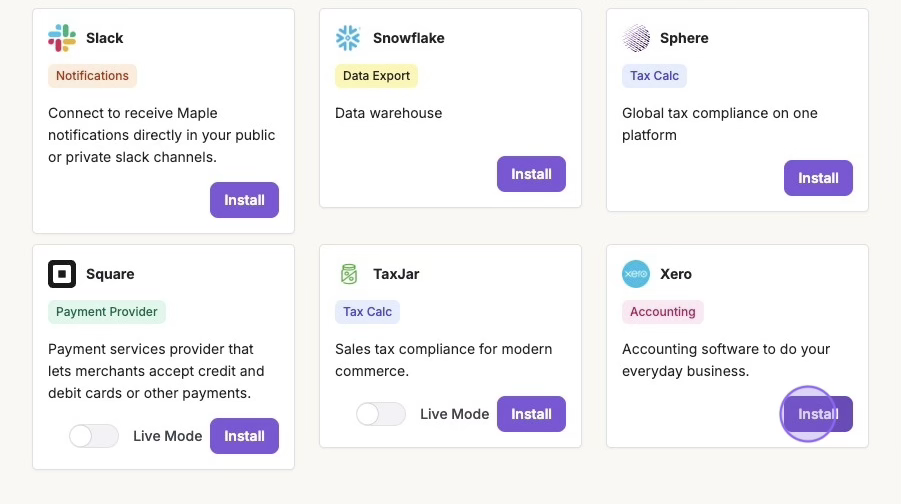
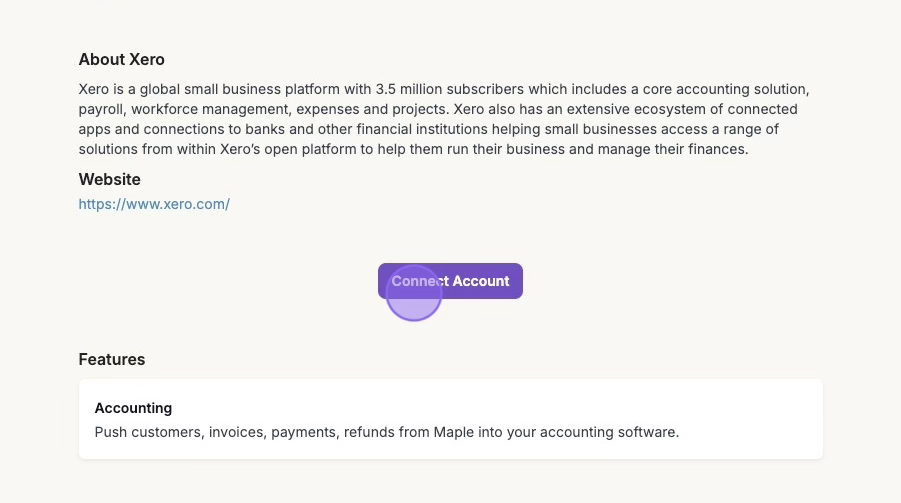
2. Click "Connect Account"
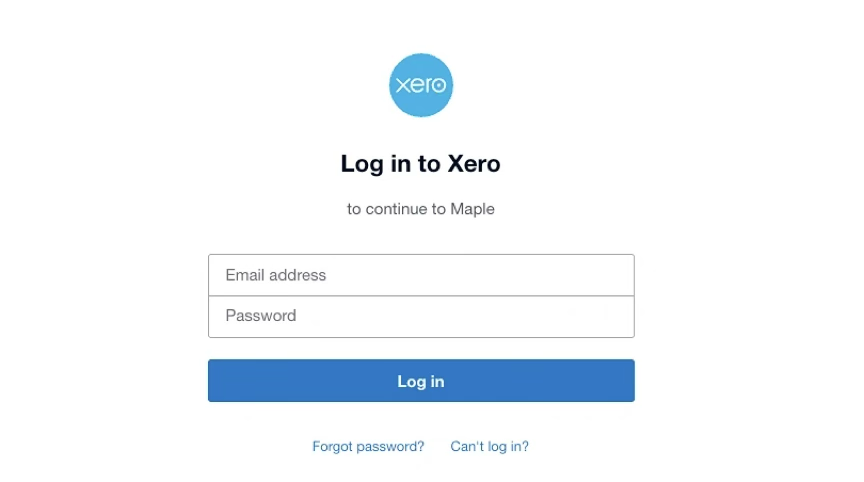
Log in to Xero, and select the required Xero account to connect.
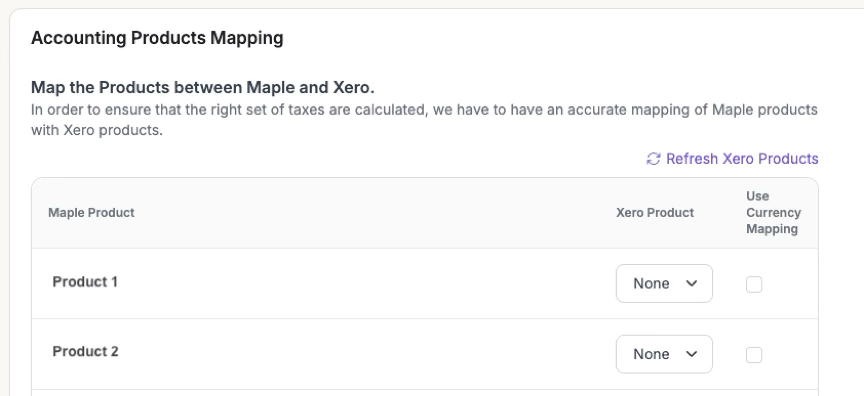
3. Map Products in Maple to Xero
Select the corresponding Xero product for each Maple product and update the mapping. Check off Use Currency Mapping if you would like to map to specific currencies. Otherwise, all currencies will map to a single Xero product.
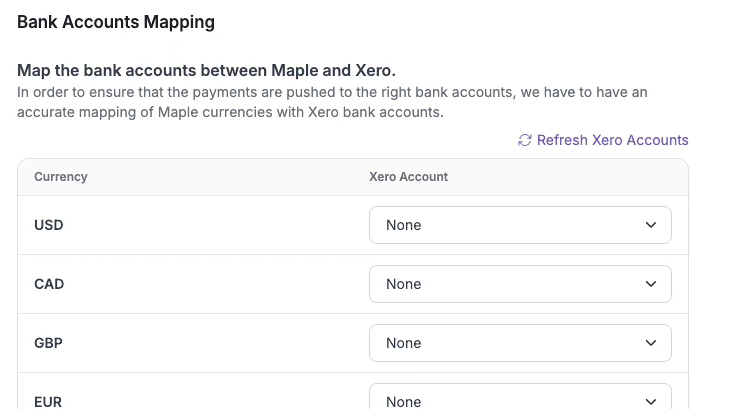
4. Map Bank Accounts Between Maple and Xero
Match the different currencies in Maple to your deposit accounts in Xero.
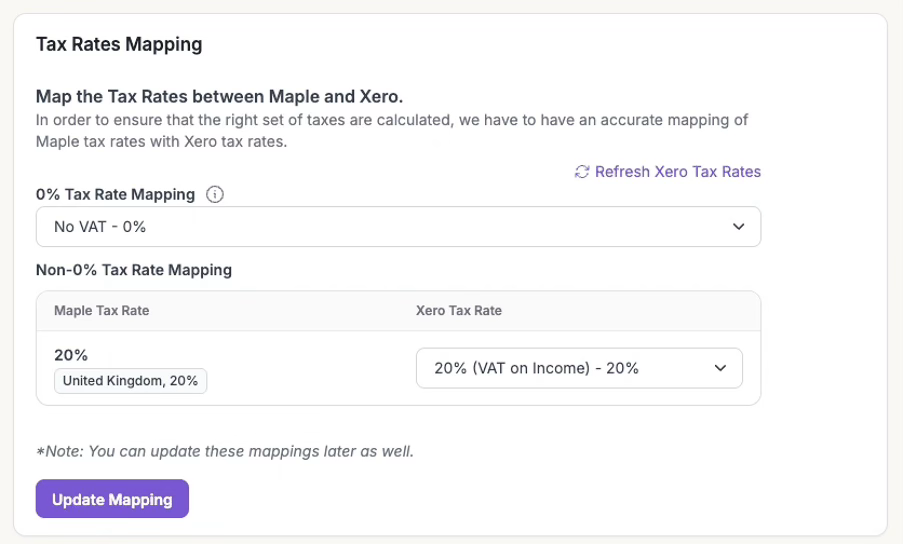
5. Map Tax Rates
Maple allows you to easily map the taxes setup in Maple with Xero. This ensures that invoices and their line items are pushed correctly.
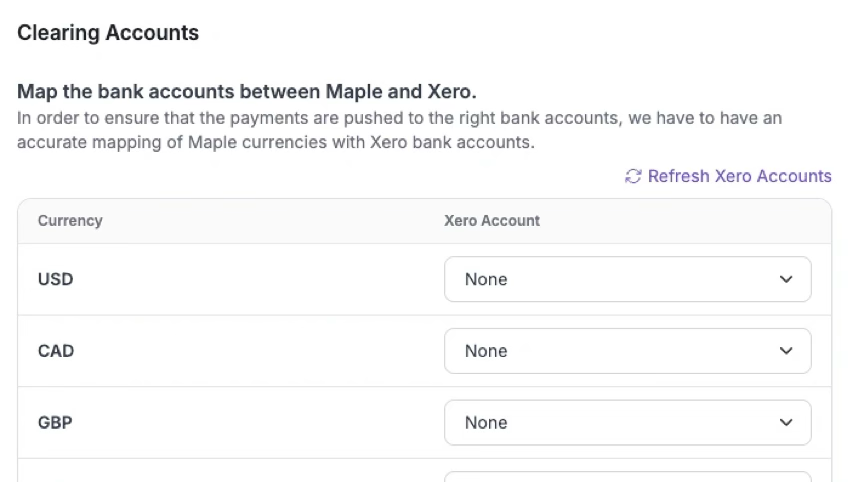
6. Map Clearing Accounts Between Maple and Xero
Select the bank account or "Undeposited Funds" account that temporarily holds your incoming payments before they are fully deposited and cleared.
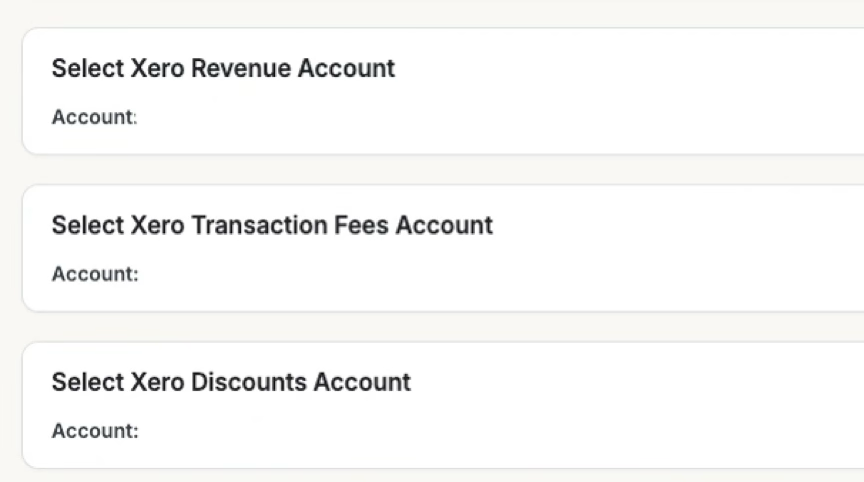
7. Map the Revenue, Transactions Fees, and Discount Accounts Between Maple and Xero (where applicable).
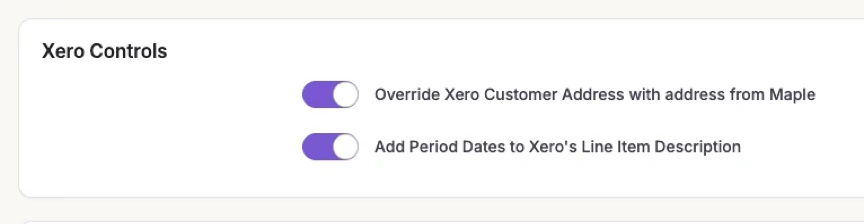
8. Toggle on Xero Controls (if applicable).
If you would like to push customer addresses from Maple to Xero, toggle the first feature on.
If you would like to add period dates to each line item, toggle the second feature on.
9. Map Customers in Maple to Xero
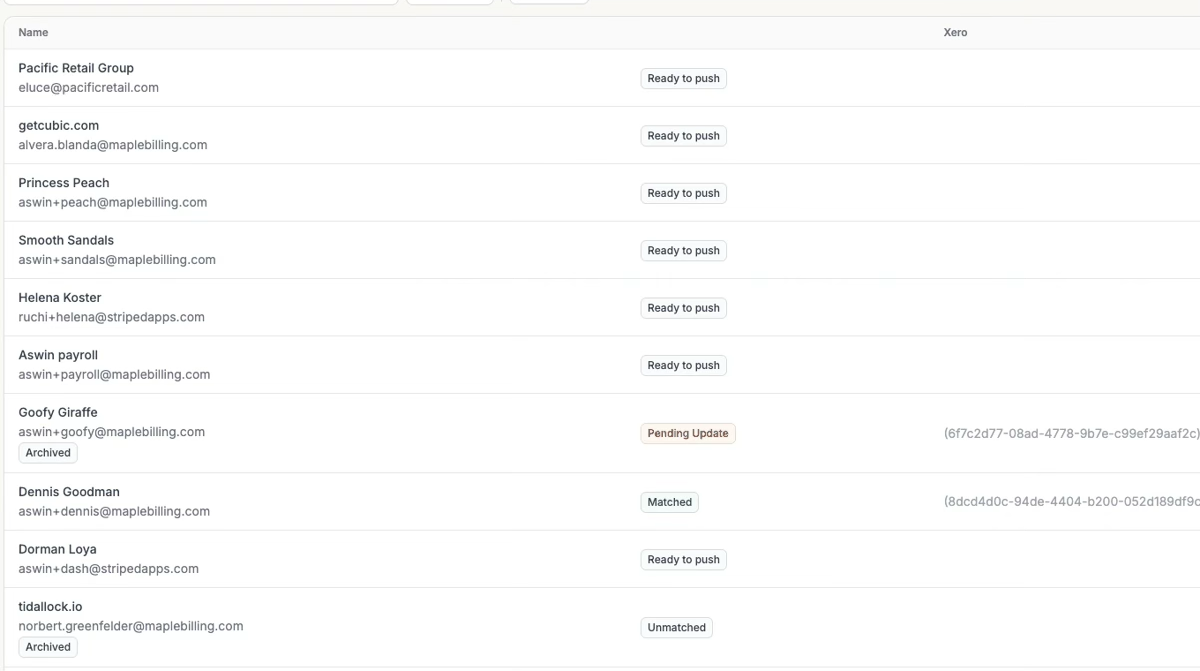
Once your Xero account is connected, you can map your customers in the settings of the Xero card in Maple's Integrations tab.
Click Matches (Accounting) > Customers. Any customers not automatically mapped will be marked as "Unmatched".
Select an unmatched customer and click Match. Match the customer, and hit Update.
10. Contact Us
When your Xero integration settings have been successfully configured, notify us by sending a message or submitting a ticket to support@maplebilling.com. We will proceed with enabling the daily sync feature for your account.
11. Sync Invoices to QuickBooks
Maple automatically syncs invoices with Xero on a regular cadence but also allows you to manually trigger a sync.
Automatic Sync
Preview when your next automatic sync will occur under the Settings of your Xero integration.

Manual Sync
Push a manual sync in the Matches or Syncs tabs of your Xero integration. You can also view a summary of the invoices that will be pushed in the next sync (automatic or manual).
